 ECEn 423
Table of Contents
Lab 10 - VGA Download
For this laboratory you will integrate the forwarding processor from the previous lab into the I/O sub-system and download your processor to the BASYS3 board. You will also learn how to use the VGA interface and change the program within your processor.
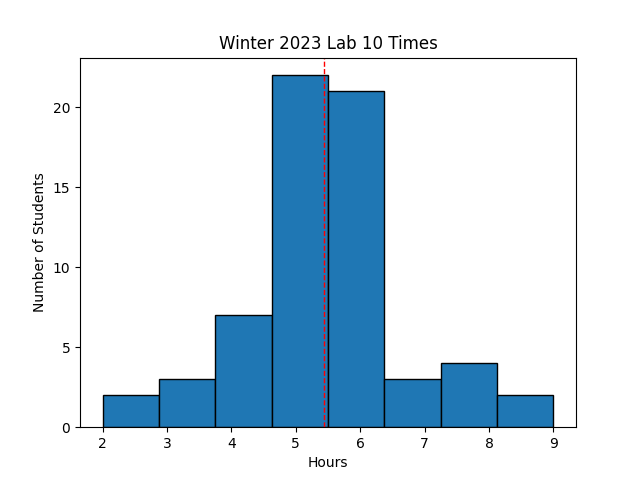 Avg Hours: 4.8, 4.2 (Winter 2022, 2021)
Learning Outcomes
- Learn how to program the VGA interface
- Learn how to create new programs for your processor system
Preliminary
Memory Mapped VGA
The logic added to your processor includes a display controller that can display text characters on a “VGA” display (VGA stands for “Video Graphics Adapter” and is an old display format that is not used much anymore). This VGA controller organizes the 640x480 display into a text character display that can display 80x30 characters (with each character having size 8x16). This controller allows you to place ASCII text characters on the screen at any of these 80x30 locations. Each character on the VGA screen is mapped to a different address location and control of the VGA display involves writing data to specific locations within this memory. The base location of the VGA display is 0x0000_8000 and the display consumes 16384 bytes (0x0000_8000 through 0x0000_bfff).
An ASCII character can be written to a specific location on the screen by writing the 8-bit ASCII value to the appropriate address. The address of each of the 80x30 character locations is determined by the following table:
| Base Address | Row Address | Column Address |
|---|---|---|
| addr[31:14] | addr[13:9] | addr[8:2] |
For example, the address of the location 24,13 (0x18,0xd) is 0x0000_8000 + 0xd << 9 + 0x18 << 2 = 0x0000_8000 + 0x1a00 + 0x60 = 0x0000_9A60. Writing the value 0x21 to this value will place the character “!” at the location (column,row) = 24,13 as shown in the following code:
    li t0, 0x00009A60
    addi t1, x0, 0x21
    sw t1, 0(t0)
Note: The li pseudo instruction involves the use of both the lui and the addi instruction.
We currently do not have the ability to execute the lui instruction so we will use other instruction sequences to do this for the lab.
Determine the address and ascii character value needed to place the character ‘$’ at column 38 and row 13 of the VGA display.
There are many online ASCII Tables you can use to find the proper ASCII code.
Determine the row, column, and character that is being written to the VGA by the following code sequence
    li t0, 0x0000a2fc
    addi t1, x0, 59
    sw t1, 0(t0)
The color of the characters on the VGA can also be controlled by the assembly instructions. All colors are specified by a “RGB” 12-bit value. The top four bits [11:8] specify the “Red” component of the color, bits [7:4] specify the “Green” component of the color, and the lower four bits [3:0] specify the “Blue” component of the color. The four bits associated with each primary color indicates the intensity of the given primary color. A value of “0000” for any of the primary colors will display none of the color while a value of “1111” for a primary color will display the color at its maximum intensity. The table below demonstrates eight different colors that can be generated with this 12-bit color signal:
| Red [11:8] | Green [7:4] | Blue [3:0] | |
|---|---|---|---|
| 0000 | 0000 | 0000 | Black |
| 0000 | 0000 | 1111 | Blue |
| 0000 | 1111 | 0000 | Green |
| 0000 | 1111 | 1111 | Cyan |
| 1111 | 0000 | 0000 | Red |
| 1111 | 0000 | 1111 | Magenta |
| 1111 | 1111 | 0000 | Yellow |
| 1111 | 1111 | 1111 | White |
With 12 bits, you can create up to 4096 different colors. Each printed character appears on the display as two colors: the foreground (the color of the pixels that make up the character shape) and the background (the color where the character pixels do not exist). By default, all characters share the same foreground as background colors (this can be changed if necessary). The color of the foreground and background can be set by the VGA color register located at address 0x000_7f34. Bits [11:0] in this register determine the RGB color of the foreground and bits [23:12] determine the RGB color of the background as shown in the following table:
| Reserved | Background Color | Foreground Color |
|---|---|---|
| [31:24] | [23:12] | [11:0] |
| 00000000 | RRRRGGGGBBBB | RRRRGGGGBBBB |
Determine the value to write to this register to set the foreground color as yellow and the background color as blue.
Exercises
Before proceeding with your laboratory exercises, update your repository with the latest lab starter code.
Exercise #1 - Simulation
In this first exercise you will simulate your forwarding processor within the I/O system.
A simple test I/O program, forwarding_iosystem.s, has been written that operates on the I/O system described above.
This program will write characters to the screen and respond to button presses.
Review this program to understand what this program is doing.
Carefully review this program and answer the questions on Learning Suite about its functionality.
Answer the questions about the test program in Learning Suite
A makefile fragment file named forwarding_iosystem.mk has been provided for you to provide the makefile rules need to simulate the iosystem in Vivado as well as generate a bitfile for the system.
Add the line include forwarding_iosystem.mk at the top of your makefile to inherit the makefile rules in your makefile.
Also, add the dependency clean-iosystem to your clean: rule in your makefile.
This dependency will call the clean-iosystem rule in forwarding_iosystem.mk to clean the iosystem build files.
Like the makefile fragment in lab 7, this makefile includes another makefile fragment ../resources/iosystem/iosystem.mk which includes a generic rule for generating .mem files from .s files.
Running forwarding_iosystem_text.mem will generate the text memory files from the forwarding_iosystem.s assembly language program.
You can simulate your processor operating with the top-level I/O system ahd emulate the pressing of buttons and changing the switches by creating a .tcl script.
A template tcl file, vga_sim.tcl, has been created to help you get started with a TCL simulation.
Run the makefile rule sim_forwarding_iosystem_tcl_template to simulate your processor within the I/O system with the assembly language program using this vga_sim.tcl script.
When simulating this system with the precompiled program, you will receive messages indicating reads and writes to the I/O ports.
This script will run the processor for a long time to execute the clearing of the screen.
You should see many messages indicating data being written to the VGA display:
730000:Reading 0x00000000 from Switches
970000:Writing 0x00fff000 to Character Default Color
1120000:Writing 0x00000020 to VGA at address 0x00008000
1360000:Writing 0x00000020 to VGA at address 0x00008004
1600000:Writing 0x00000020 to VGA at address 0x00008008
1840000:Writing 0x00000020 to VGA at address 0x0000800c
2080000:Writing 0x00000020 to VGA at address 0x00008010
2320000:Writing 0x00000020 to VGA at address 0x00008014
2560000:Writing 0x00000020 to VGA at address 0x00008018
2800000:Writing 0x00000020 to VGA at address 0x0000801c
.
.
.
983690000:Writing 0x00000020 to VGA at address 0x0000bff8
983930000:Writing 0x00000020 to VGA at address 0x0000bffc
984200000:Writing 0x00000000 to Seven Segment Display
984230000:Writing 0x00000000 to LEDs
984290000:Reading 0x00000000 from Buttons
984470000:Reading 0x00000000 from Buttons
Copy this file into a new file named vga_sim_new.tcl and extend this tcl script to simulate the program writing to the VGA display with a character of your choosing.
Your script should do the following:
- Set the switches to the ‘!’ ASCII character (hex 0x21)
- Press the button-R
- Execute/run the simulation until the character is written on the screen.
Note: There is debouncing logic on the buttons that will require about 18 us before the button press is available from the I/O system.
You will need to simulate long enough for your button press to pass through this debouncing delay circuitry.
If your system is operating correctly, you should see a message in the log such as the following in which the value ‘0x21’ is written to the VGA address space (the time that this happens may not necessarily be the same as shown below):
1006900000:Writing 0x00000021 to VGA at address 0x00008004
There is a makefile rule sim_forwarding_iosystem_tcl_tcl created for you that will run the simulation using the vga_sim_new.tcl script.
Run this rule and verify that your processor is executing properly.
You will need to include this .tcl file file as part of your lab submission
Exercise #2 - Synthesize, Implement, and Generate Bitstream
After verifying your processor works correctly with the I/O system in simulation environment, you are ready to generate a bitstream of your system and download it to the Basys3 board. If your processor is designed correctly then it should be able to execute the sample test program that writes to the VGA display.
For this exercise, you will synthesize, implement, and download your processor along with the I/O sub-system precompiled with the demonstration program.
A constraints file has been created for you that maps the top-level I/O signals to the pins on the BASYS3 board.
The makefile rule forwarding_iosystem.bit will perform the synthesis, implementation, and bitstream generation for the system with the demonstration program.
Review the implement_forwarding_iosystem.tcl implementation script to see how the synthesis and implementation steps are performed for this design.
After generating a bitstream, answer the following resource questions.
Summarize the utilized resources for your implemented design from the file ‘forwarding_iosystem_utilization.rpt’.
| Resource | Utilized |
|---|---|
| Slice LUTs as Logic | |
| Slice LUT as Memory | |
| Slice Registers | |
| Block RAM Tile | |
| Bonded IOB | |
| BUFGCTRL | |
| MMCME2_ADV |
What is the Worst Negative Slack (WNS) in the ‘forwarding_iosystem_timing.rpt’ file?
Once you have a bitstream, verify that the board and the VGA assembly language program operate on the VGA display as you expected.
In order to test your design, you will need to connect your Basys3 board to a VGA monitor (see these instructions for details on how to do this on the lab computers).
To demonstrate that your system is working properly, press the switches and buttons on the board such that you can write custom characters on the screen.
Specifically, write your netID in the VGA display and take a picture of the display (with your phone or other camera).
Name your file vga.jpg and limit the size of your file to less than 1 MiB.
You will need to include this image as part of your lab submission
Exercise #3 - Changing the Processor Program (Defuse)
For this exercise, you will be running your processor with the program defuse.s.
This program simulates the defusing of a virtual “bomb”.
When first started, the VGA display is yellow indicating that the bomb is active.
You need to figure out what buttons and switches to press to defuse the bomb and turn the screen green.
If you make a mistake, the VGA display will turn red (i.e., explodes).
When you have defused the bomb, the screen background will change and a code will be displayed on the display.
You need to figure out what buttons and switches you must set by carefully reviewing the assembly code.
A vivado .tcl script has been created that will allow you to change the program that is embedded in the bitstream without having to go through the entire synthesis and implementation process.
The following example demonsrates how to use this script to change the program in the bitstream:
vivado -mode batch -source ../resources/load_mem.tcl -tclargs updateMem <checkpoint .dcp filename> <.text memory file> <.data memory file> <new bitstream filename> [optional .dcp file]
A makefile rule forwarding_defuse.bit has been created for you in the makefile fragment that will run this command with the appropriate arguments to update the bitstream with the defuse.s program.
Using this approach will speed up the time it takes to update the program in the bitstream.
After generating the bitstream and reviewing the defuse.s assembly language program to figure out how to defuse the bomb, download the bitstream to the board and try to defuse the bomb by pressing the buttons and switches in the correct sequence.
Enter the code displayed on the defused “green” screen when you have figured out how to defuse the circuit.
Exercise #4 - Custom Program
For the final exercise, you are to create your own custom assembly language program named move_char.s that operates as follows:
- On initialization of the program do the following:
- Clear the screen with the following color (red=0x9, green=0x2, and blue=0xe or 0x92e)
- Clear the value on the seven segment display
- Print your ‘netid’ on screen starting at column 60 and row 24. Write your ‘netid’ with a foreground color of 0xf80 and use the same background color as the cleared screen
- Display the ASCII character code 0x01 (a smiley face) at the top-left corner of the screen (using the same foreground and background as your ‘netid’)
- Provide the ability to ‘move’ the character using the buttons BTNR,BTNL,BTNU, or BTND to move the character right, left, up, and down.
- This is similar to the code in the
forwarding_iosystem.scode with the difference that you need to clear the previous location with a space (0x20) so that it appears that the character is moving from one space to another rather than leaving a trail - Make sure the character is bounded to a 10 x 10 region on the screen. If the user tries to move the character out of the top 10x10 character spaces then ignore the button press
- Increment the value on the seven segment display every time a valid button move occurs
- This is similar to the code in the
- When BTNC is pressed, start the program over (i.e., clear the screen and move the character to the first location)
This program will be very similar to the forwarding_iosystem.s assembly language program in the starter code.
Feel free to copy as much of this code as needed to implement this functionality.
Create a makefile rule forwarding_move_char.bit that creates a new bitstream that runs your move_char program by loading the forwarding_iosystem.dcp checkpoint file, updating the program in the bitstream with the move_char.s assembly language program, and generating a new bitstream with the updated program.
This makefile rule should be very similar to the forwarding_defuse.bit rule that is included in the forwarding_iosystem.mk makefile fragment.
Generate a log file named forwarding_move_char.log that contains the output of the command that generates the new bitstream with the updated program.
Pass Off
The final step in the laboratory process is to complete the ‘pass off’. Carefully review the instructions for Git Submission as you prepare your submission for this lab. You will need to run the following command successfully to submit your lab:
python3 passoff.py --submit
Include the following information at the end of your laboratory report.
How many hours did you work on the lab?
Provide any suggestions for improving this lab in the future
How did you use AI to help you with this lab