 ECEn 320
The Vivado logic simulator can also be run in GUI mode to view the “waveforms” of your design.
This form of simulation allows you to more easily see the behavior of your design over time and is often used when debugging logic errors.
This tutorial will demonstrate this process using the lab_tools/binary_adder/ design.
Run the simulation in GUI mode like so:
cd lab_tools/binary_adder
make sim
This will open the simulation environment and provide a GUI interface for the simulation. The image below demonstrates what this will look like. This window has several important regions that are described below:
- Tool Bar: At the top is a toolbar with a number of buttons to help with simulation. This will be discussed in more detail below.
- Scope Window: The left side of the window is the scope window. This window shows the hierarchy of your design and allows you to select which signals you want to view.
- Objects Window: The right side of the scope window is the objects window. This window shows the signals that are in the currently selected scope
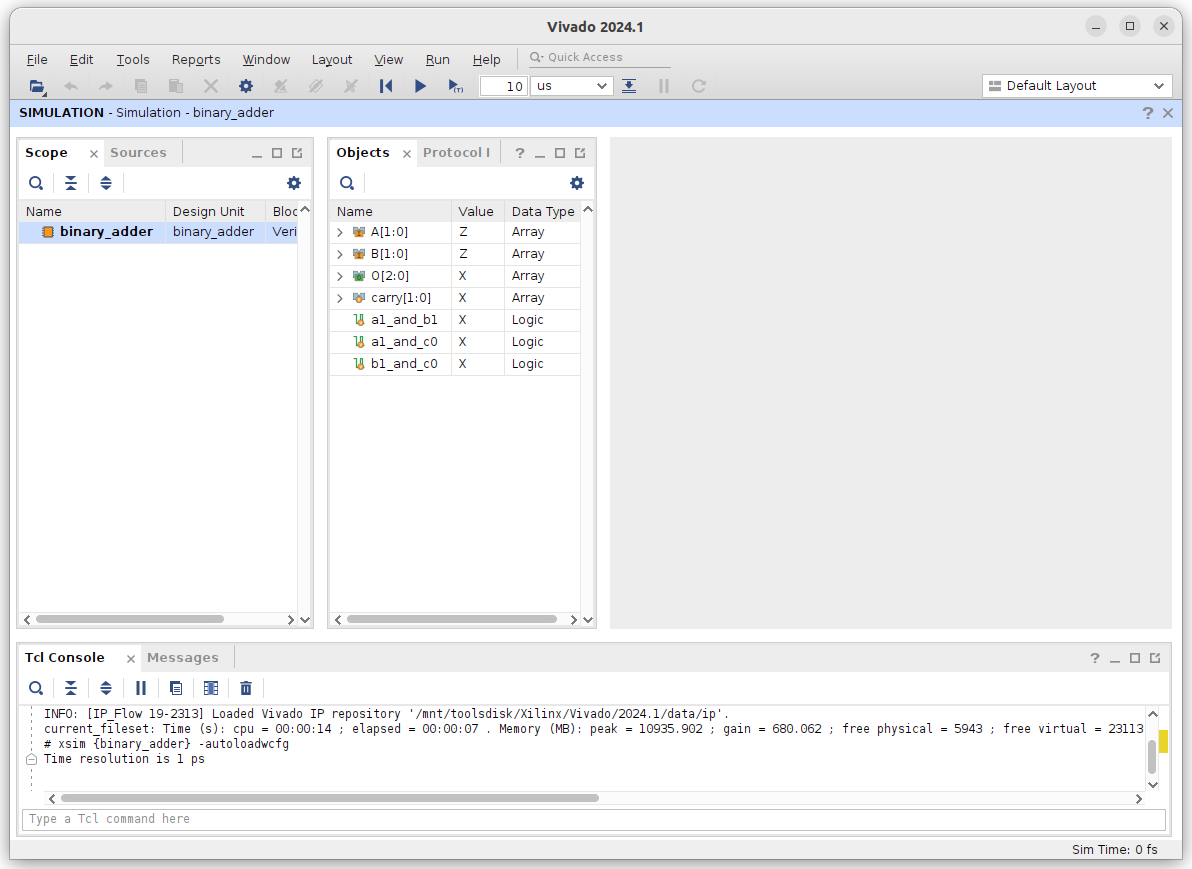
Like the sim_nogui command, the sim_gui command will also run the commands in your sim.tcl file.
If you look at the Tcl console at the bottom of the window, you will see the commands from your sim.tcl file have been executed.
However, when in GUI mode, we are usually interested in viewing the waveforms of the signals in our design.
For this example, we will view all the signals in the binary_adder module.
Select the binary_adder in the scope window.
Right click and select “Add to Wave Window” to add all the signals in the binary_adder module to the waveform viewer.
This will create a new waveform window with all the signals of the module shown.
The image below shows what this will look like.
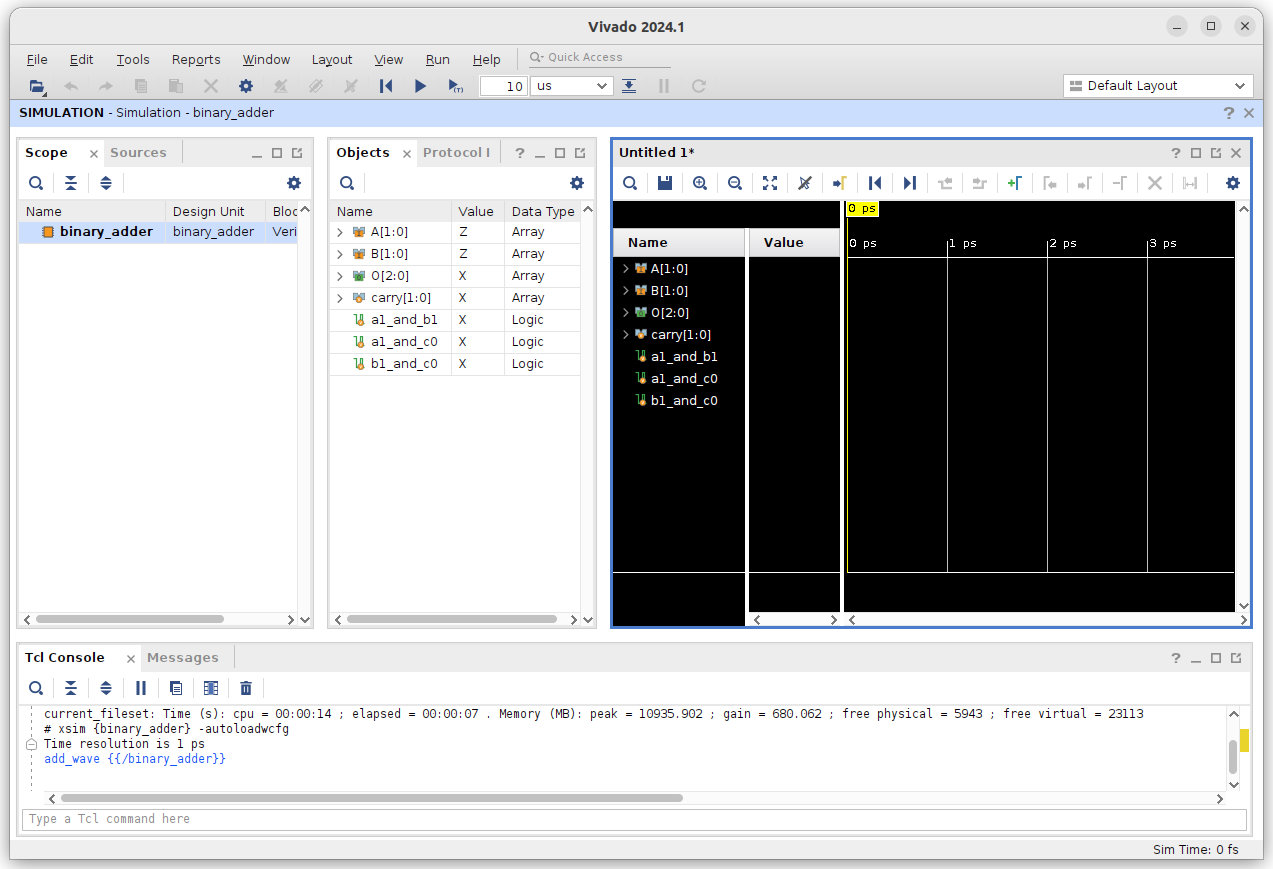
The yellow bar shows the current simulation time.
It is at 170ns because the sim.tcl file ran the simulation for 170 ns (your sim.tcl file may be different so your time may vary). However, since we ran the sim.tcl file before adding the waveforms, the waveforms are not populated with any data yet.
Let’s reset the simulation time to 0 ns so we can run the simulation again and see the waveforms populate. In the Tcl console at the bottom of the window, enter the command:
restart
At this point you can run the same simulation commands you ran in the command line simulation tutorial.
Commands such as run, add_force, restart, and get_value can be run in the Tcl console at the bottom of the window.
Enter the command run 10 ns to advance the simulation time by 10 ns.
The waveform viewer will update to show the new values of the signals at the new time.
Note that the inputs A and B are a blue color with the value Z.
This means that the input signals are undefined.
The other signals are red with a value X.
This means that the signals are unknown and generally indicates an undesirable simulation value.
Set a value for both A and B (using add_force) and advance the simulation by 10 ns (using run) to see the waveform update.
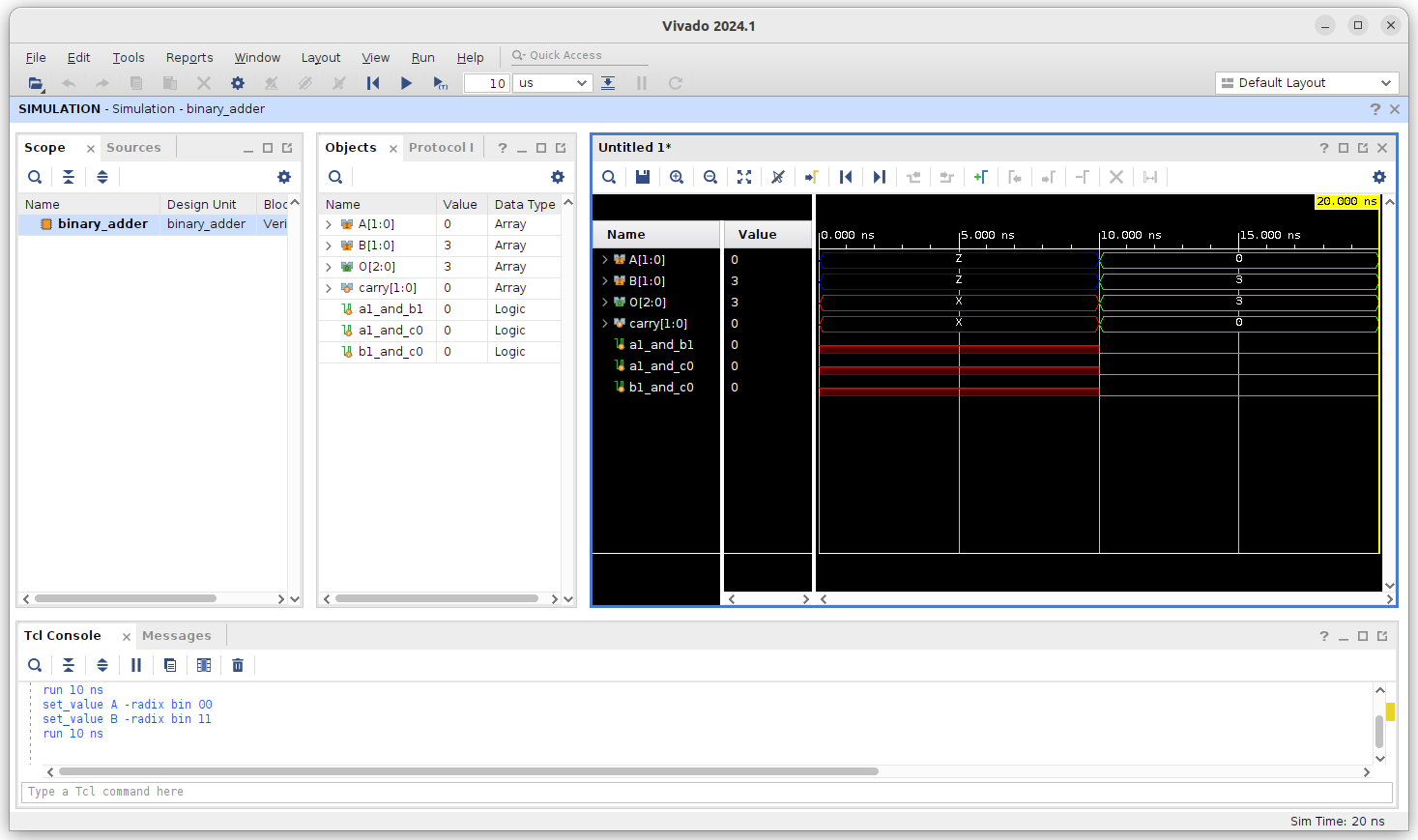
After running the simulation you will see the colors of the waveforms changed.
The waveforms for the switches will now be green with the value you set them to and the waveforms for the other signals (including the LEDs) will be green.
Tip: Click the ‘zoom out button’  in the toolbar to see the entire waveform.
You should see something like the following image:
in the toolbar to see the entire waveform.
You should see something like the following image:
In addition to manually setting values and running the simulator, you can also create Tcl scripts to automate the simulation process. You can also ‘source’ your Tcl script to perform multiple set/run commands like this:
source ../sim.tcl
When you are done simulating, exit the GUI and click on ‘Discard’ when the dialog box prompts you to save the waveform.
Simulate and Create Waveform with Tcl Script
To automate the simulation process and set up the wave viewer automatically, add the following segment to the very beginning of your Tcl script:
# Check if a waveform configuration is already present
set curr_wave [current_wave_config]
if { [string length $curr_wave] == 0 } {
    # If no waveform configuration exists, create one and add top-level signals
    if { [llength [get_objects]] > 0 } {
        add_wave /
        set_property needs_save false [current_wave_config]
    } else {
        # Warning if no top-level signals are found
        send_msg_id Add_Wave-1 WARNING "No top-level signals found. Simulator will start without a wave window. If you want to open a wave window, go to 'File->New Waveform Configuration' or type 'create_wave_config' in the Tcl console."
    }
}
This will configure the waveform viewer before running the subsequent add_force, run, and other commands in your Tcl file, allowing the wave file to populate and display the signals.